
Why split a GPX file?
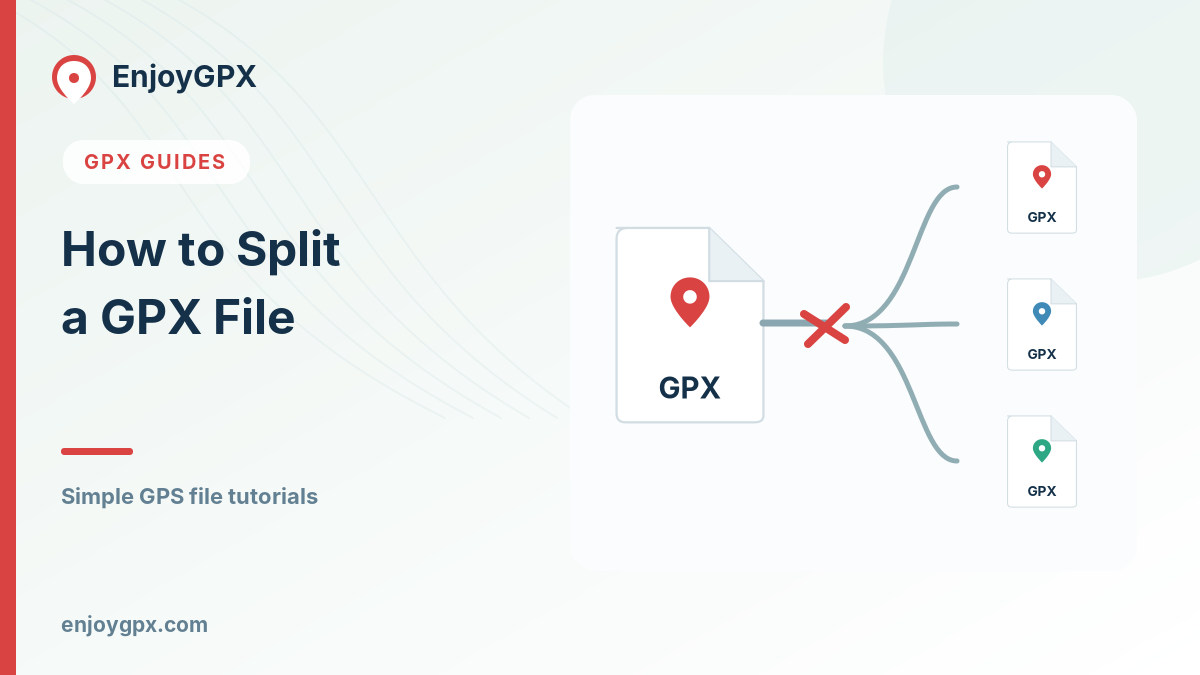
A long GPX recording might include several days of travel, repeated routes, a rest stop or an accidental recording at the end. Splitting allows you to keep one part independently or share a smaller section without distributing the entire journey.
A GPX file may already have several tracks or track segments. In that case, the split can be straightforward: export one track or segment rather than dividing points manually. If everything is stored as one segment, you need to choose a start and end point more carefully.
Find the correct split point
- Save an untouched copy of the GPX file.
- Open the original in the GPX Viewer and inspect the entire line.
- Identify the beginning and end of the section you want to keep.
- If timestamps exist, note the recording time around the cut; do not rely only on the map's visual position.
- Decide whether the result should be a separate track, a new segment or its own GPX file.
Learn how GPX tracks differ from routes before you split a complex file. A route with just a few planned points is not processed the same way as a dense GPS recording.
How to export sections safely
Use a GPX editor that offers an explicit
Split
,
Cut
or
Export selected track
command. Import the source, select the correct track or portion, and export each desired section as its own
.gpx
file. Check that each file has a single valid GPX root and contains the expected track points.
EnjoyGPX's current GPX Track Editor can edit or delete individual points, but it is not a bulk GPX splitter . It may help with a small correction; it is not the best workflow for dividing thousands of points at once.
What happens to timestamps and elevation?
When a program keeps the original point elements, timestamps and elevation may be preserved for those points. Some tools rebuild tracks and drop certain fields or extensions. After exporting, verify that an activity analysis program still shows the expected times and heights.
If you plan to share only the middle of a recording for privacy, also inspect waypoints and file metadata; they can still identify locations beyond the visible section. You may need to remove private coordinates using a suitable editor before publishing a file.
Avoid creating artificial straight lines
A GPX track segment consists of ordered points. If a splitter removes a large section but reconnects the remaining endpoints inside one segment, a viewer may draw a line across the missing area. Create separate segments or separate files when continuity was actually broken.
After the split, reopen every output in the viewer. If the GPX fails to parse, follow the steps in how to fix a corrupted GPX file . If the goal was to make the route easier to load, see how to reduce GPX file size as another option.
Example: removing a train ride from a walking recording
Imagine you forget to stop GPS recording after finishing a hike, then travel home by train. Your GPX shows a legitimate walking section followed by a fast straight or winding journey. Splitting at the point where the hike ended lets you export the walk without treating the train ride as part of it.
Check the cut at high zoom. If you choose a point several hundred metres before the real finish, the exported file could miss part of the walk. If you cut too late, it can still contain private travel information. Timestamps and nearby landmarks can help confirm the correct boundary.
Segment boundaries versus separate files
A segment break tells a GPX reader that one track contains discontinuous recording sections. A separate GPX file can be useful for sending one leg independently. If you're creating an activity archive, preserve sections and names in a way that makes sense later. If you're sharing a short route with a friend, exporting only that part may be simpler than sending the entire multi-day track.
Frequently asked questions
Does splitting a GPX track change distance?
Each exported section should represent only its own path. Total distance can differ from the original if the split removes points or if software calculates segment gaps differently.
Can I split by date instead of by location?
Many specialized GPX applications support time-based splits, provided the file has useful timestamps. A file without timestamps cannot be divided reliably by recording time.