
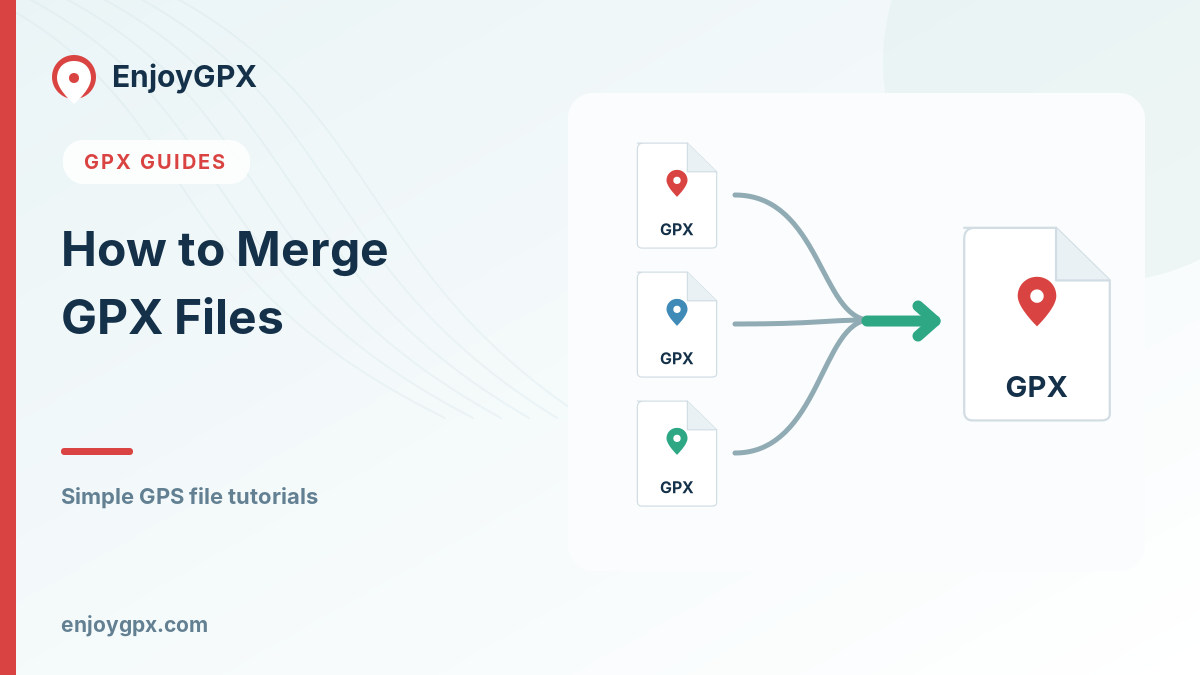
What does merging GPX files mean?
Merging brings information from two or more
.gpx
files into a single valid GPX document. The result may contain multiple separate tracks, one combined track with multiple segments, or one continuous sequence of points. Those are not the same thing, and different GPX merge tools may produce different results.
Imagine you recorded the morning and afternoon sections of a hike separately. You might want one file to archive the full day, but keeping a break between sessions can be useful. If you merge the points into one continuous segment, some viewers may draw a straight line across the gap.
Prepare your files before merging
-
Name the inputs clearly, such as
day-1.gpxandday-2.gpx. - Open each file in the GPX Viewer to confirm its contents and sequence.
- Check that the end of one track and the start of the next are in the expected areas.
- Check timestamps where they exist, especially if the recordings cross midnight or time zones.
- Keep a copy of every original file.
For a refresher on track and route structures, read what is a GPX file? . An input with waypoints only may need different handling from one with several track segments.
Choose how to combine the tracks
Preserve separate tracks:
best for multiple days, different participants or distinct activities. The merged document contains separate
<trk>
elements, and an app may show them as individual lines.
Keep segments inside one track: useful when it is logically one journey but contains recording pauses. Segments help preserve breaks and avoid misleading connections.
Join all track points into one segment: can work for truly continuous recordings, but can also connect unrelated locations. Only do this when you understand the effect on distance, timing and displayed geometry.
EnjoyGPX currently has viewers and point editors, but does not yet offer a dedicated GPX merger . Use a GPX application that explicitly supports merging multiple files and lets you choose how to treat segments. Avoid instructions that ask you to paste entire XML documents one after another: a valid GPX file needs one root element with correctly nested children.
Check the output before using it
After merging, open the result and compare each section with the sources. Look for doubled sections, unexpected straight jumps, missing waypoints and reversed track order. If it is meant to represent a single activity, review its timestamps as well. An odd total distance can be a sign that separate locations were accidentally connected.
The GPX Track Editor can help correct individual points in the resulting file. If you want to understand why a jump appears, see how to edit GPX files .
Merge versus split
A merge combines GPX content; splitting does the reverse. If one huge GPX file contains several stages, you may want to split a GPX file first, then reorganize the pieces. This can also help when an app struggles with long recordings.
Example: a three-day bicycle trip
Assume each day was recorded separately. If you put each day in its own track within one GPX document, you can keep the days logically distinct. If you instead append all points into one segment, the display may draw a line from the end of day one to the start of day two—even if you took a train between them. The route would no longer show only distance actually ridden.
When timestamps exist, sort sessions in chronological order before combining them. However, don't sort individual points blindly by timestamp if one recorder has a clock problem; that could scramble its path. Compare the recorded time with the geography to decide the correct order.
What about different GPX versions?
GPX 1.0 and GPX 1.1 differ in their metadata structures and some fields. A merger should write a valid document for its chosen output version rather than copying headers from several sources. If a tool claims to merge files but the result fails in another viewer, version handling or malformed nesting can be a cause. Test the merged result in a second application before deleting your inputs.
Frequently asked questions
Can merging GPX files fix GPS inaccuracies?
No. It combines their data. Inaccurate individual points should be corrected separately, and gaps do not disappear merely because tracks are placed in the same file.
Will waypoints survive merging?
They can, but the merge program must explicitly preserve them. Verify the output rather than assuming every tool handles waypoints and extensions.